Someone fills in your calculator, picks a menu for 60 hengen firmajuhla, and hits submit. Here's where that request goes and how you find out about it.
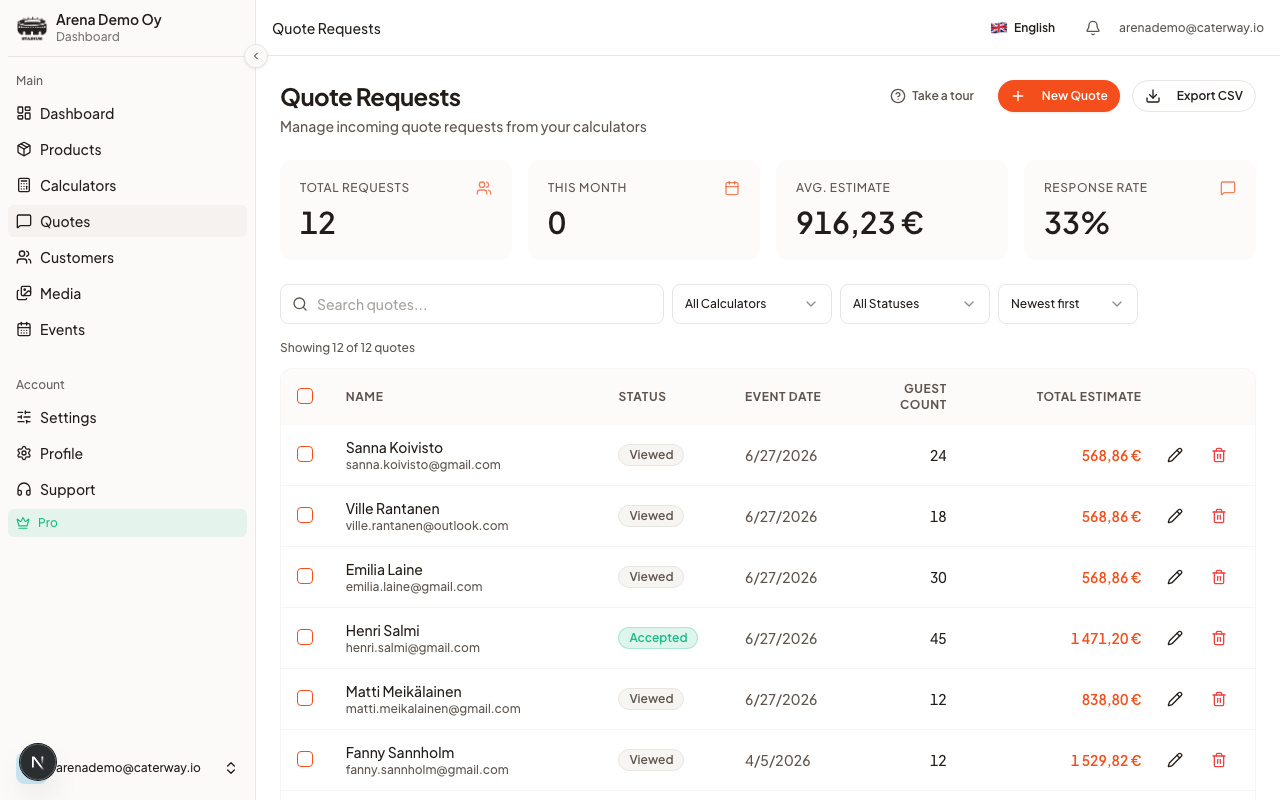
Where requests show up
Every submitted calculator lands in Tarjouspyynnöt (Quotes) in the sidebar. New requests appear at the top instantly, no refresh needed.
How you're notified
- Email: you get an email the moment a request comes in.
- Push notification: turn on Push notifications for new quote requests under Settings → Your account to get a notification on this device the moment a customer submits. On iPhone/iPad, add CaterWay to your Home Screen first, Safari only delivers push notifications to installed apps.
What a request contains
- Customer name, email, phone (if you collected it)
- Event date, type, location, guest count
- The selected products and quantities, with the calculated total
- Any custom form fields or popup-question answers you've set up
- A free-text message from the customer, and their payment method choice if you offer one
Filtering a busy list
Above the list: a search box, a calculator filter (if you run more than one), a status filter, and a sort dropdown (newest, oldest, highest estimate, lowest estimate). On phones, the same filters collapse into a Filters sheet, with four quick tabs above it (All, Reply, Active, Won) so you can jump straight to what needs attention.
The four stat cards at the top (Total Requests, This Month, Avg. Estimate, Response rate) always reflect every request you've ever received, not just what's currently filtered or loaded on the page.
The conflict badge
If a request's date collides with a day you've blocked or an event you've already confirmed, the row gets a Scheduling conflict badge. That request can never auto-confirm silently, see Auto-confirm rules and Accepting a conflicted date for what to do with it.
Was this article helpful?