Upload, search, and reuse photos across your menu
Every image picker in CaterWay, a product photo, a staff photo, an event picture, opens the same media library, so a photo you upload once is available everywhere.
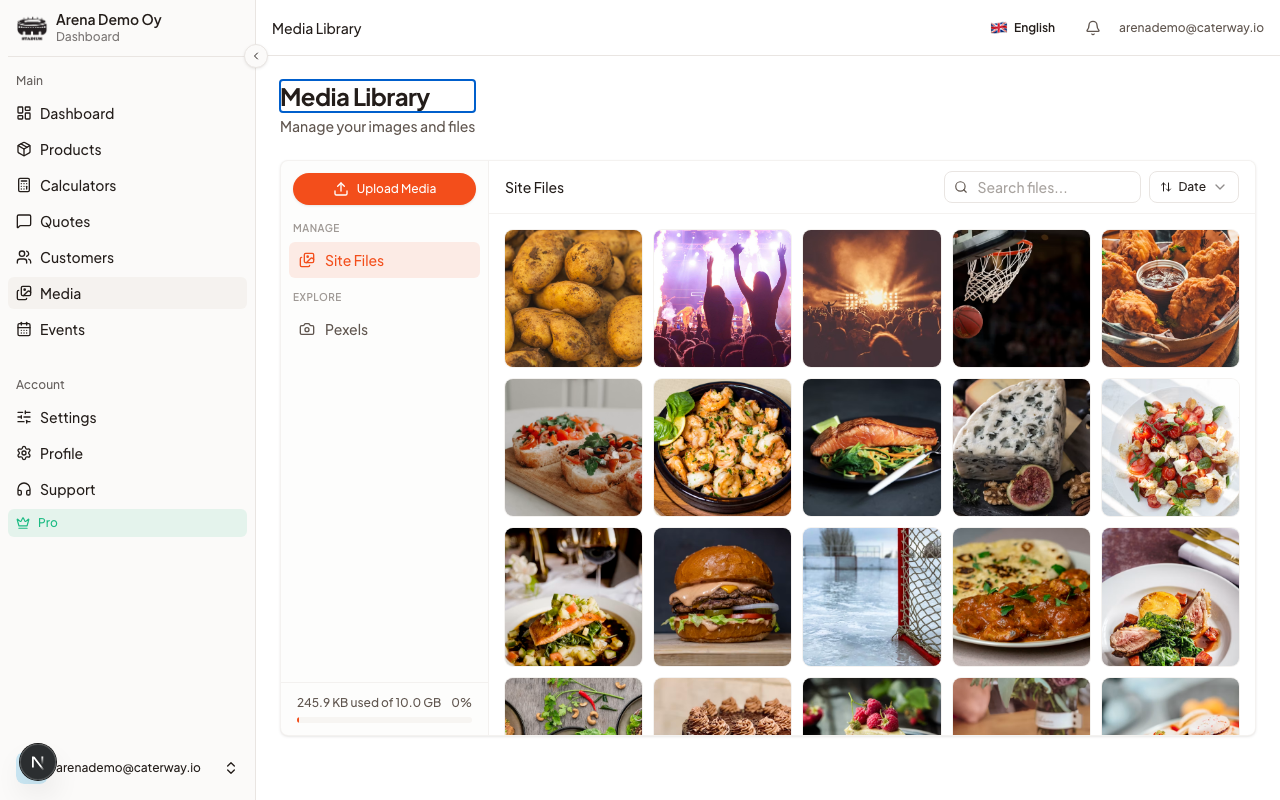
Where to open it
- The standalone Media Library page, for browsing and cleaning up everything at once
- The image picker inside a product, category, staff member, or event, opens the same library in a dialog
Uploading your own
Drag files onto the grid, or click Upload. Each file must be an image under 5 MB, anything bigger gets rejected with a toast telling you which file and why.
Searching free stock photos
Switch to the Pexels tab and search free photos by keyword, "grilled salmon" or "wedding table", curated results load automatically before you type anything. Click a photo to preview it, then add it to your library, it downloads into your own storage so it keeps working even if Pexels changes it later.
Storage limits
| Plan | Storage |
|---|
| Free | 500 MB |
|---|---|
| Pro | 10 GB |
Managing what's there
Select multiple images to delete them together. Click any image to see its details in a side panel, on narrower screens this opens as a sheet instead.
Was this article helpful?