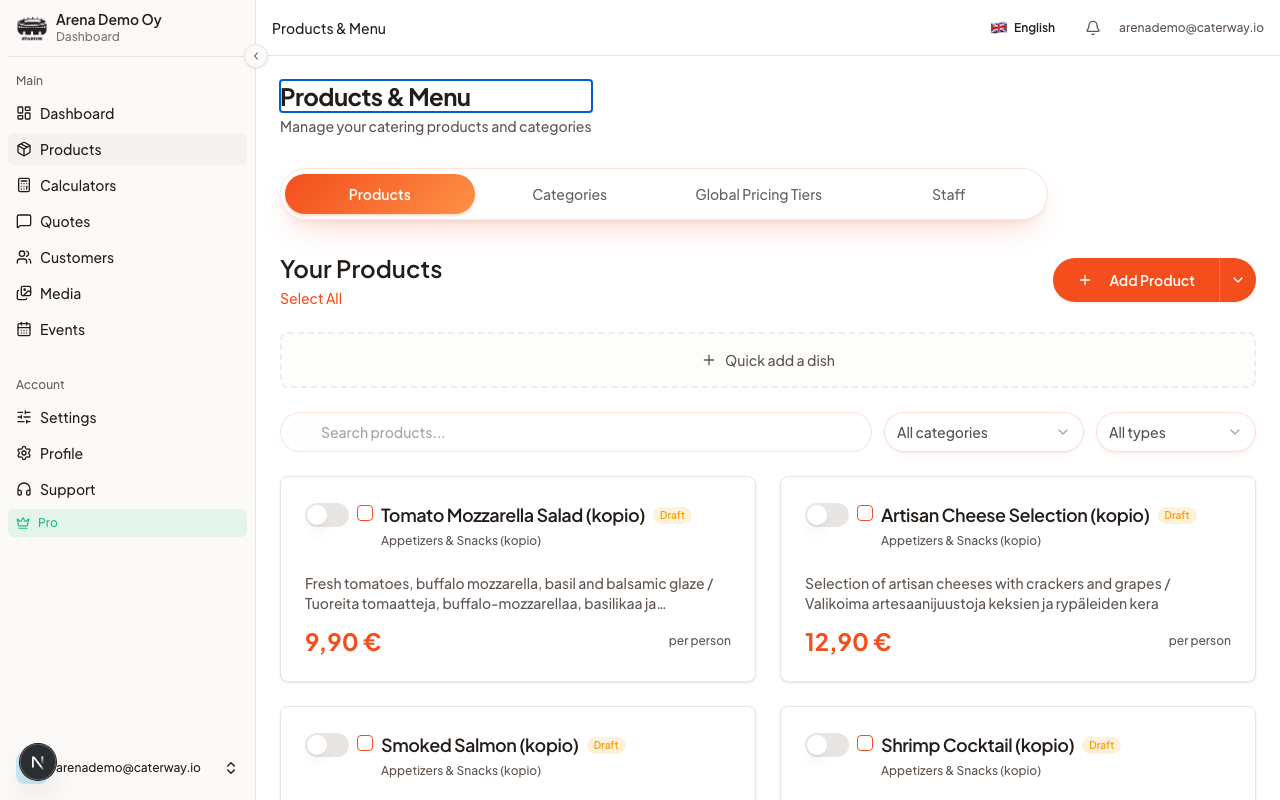
Products are the individual dishes your clients pick from, categories group them (Starters, Mains, Desserts, or whatever fits your menu). Both are managed on the Products & Menu page, separate from any one calculator, so you build your library once and reuse it across calculators.
Good to know
The Free plan allows 3 categories with up to 5 products each. Pro removes both limits, see Subscription plans.
Add a category first
- Open Products & Menu → Categories.
- Click Add Category and give it a name.
Add a product
- Switch to the Products tab and click Add Product.
- Fill in the fields that matter:
| Field | What it does |
|---|
| Dish name | What clients see |
|---|---|
| Category | Which category it belongs to |
| Base Price | Per person, or per item if you switch the pricing unit |
| Cost price (optional) | Your internal cost, never shown to clients, used to calculate your margin |
| Image or Icon | Upload a photo, search Pexels, or pick an icon |
| Dietary Tags | Vegetarian, vegan, gluten-free, and other allergen markers |
- Click Save.
Next: pick which of these categories and products go into your first calculator.
Was this article helpful?